Views (Inspecting / Authoring)
The grill.views package provides Qt widgets to author and inspect USD content.
Convenience launchers and menus for USDView, Houdini and Maya are provided (appearing under the 👨🍳 Grill menu), but any DCC or environment with USD and PySide(2|6) should be able to use the widgets.
Spreadsheet Editor
Tabular representation of a Stage to quickly inspect and edit Prims in bulk.
Copy pasting functionality like in other spreadsheet applications should be possible (via csv clipboards).


Connections Viewer
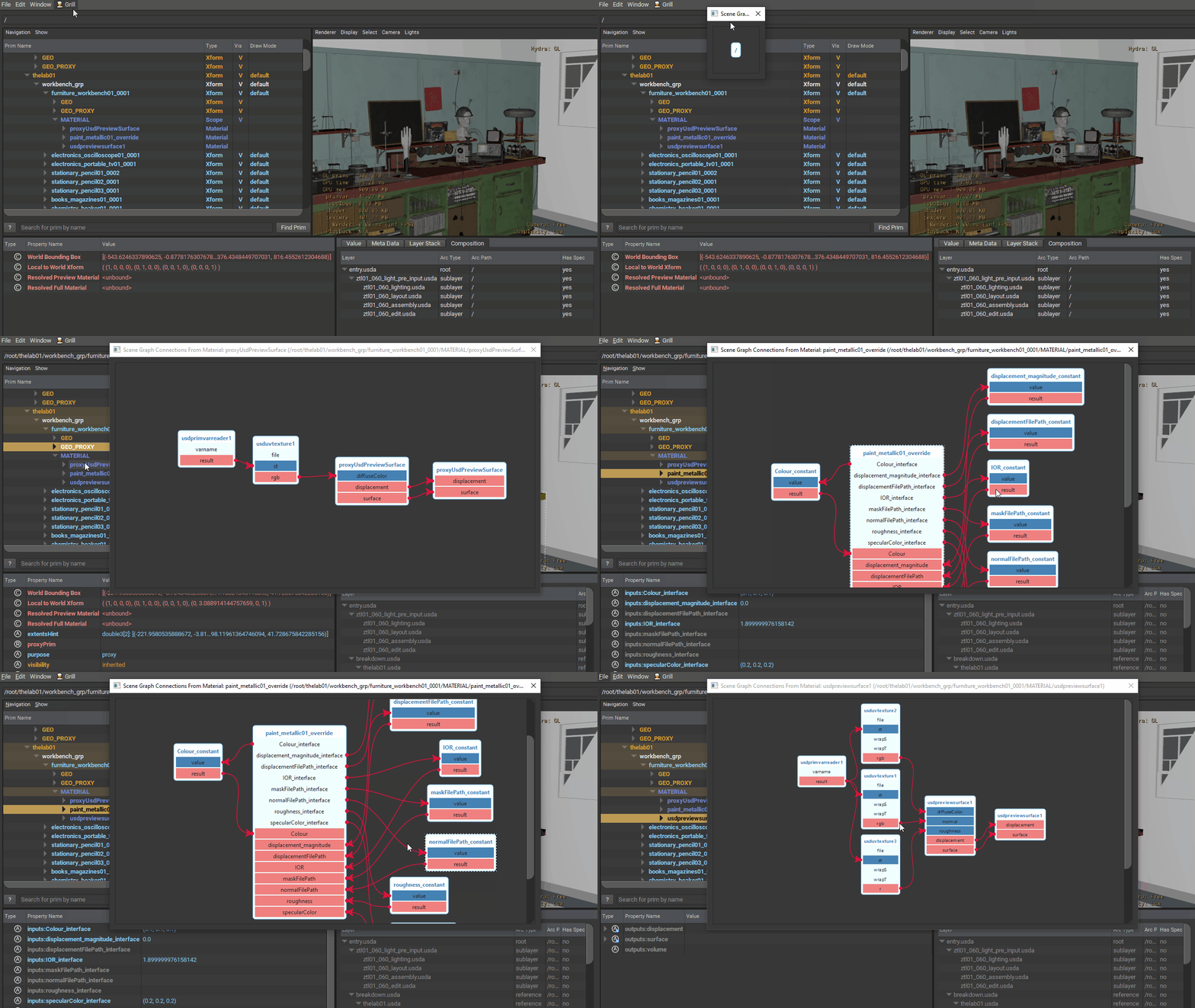
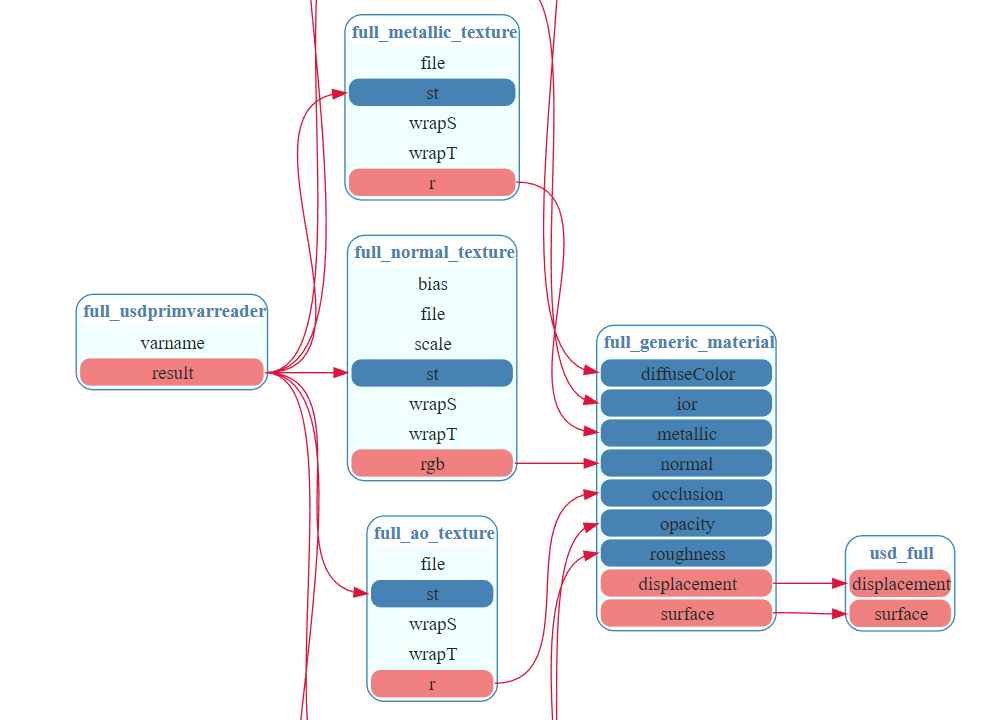
From a given Prim, recursively traverse its Connections through UsdShadeConnectableAPI.
Every node represents a Prim with its name at the top, and each of its Inputs (dark blue if connected, otherwise light blue) and Outputs (red) below.


Prim Composition
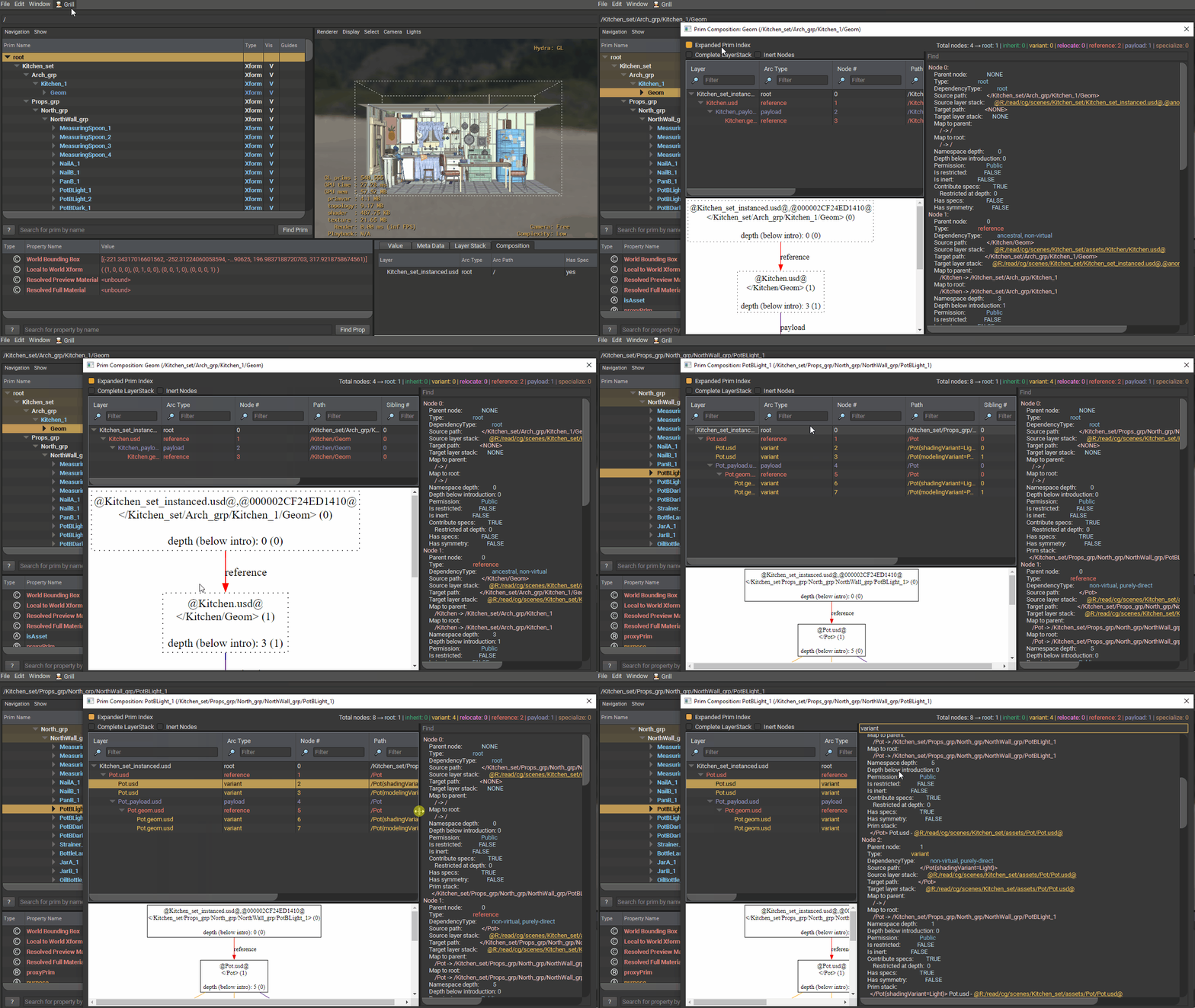
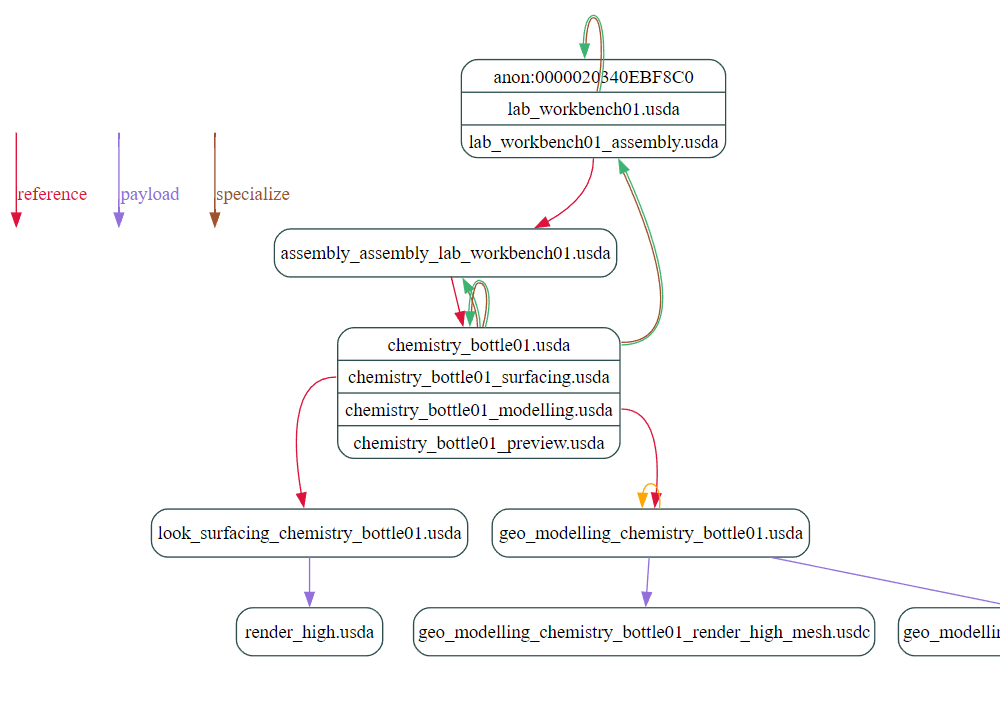
Uses Prim Index and its utilities (PcpPrimIndex::DumpToDotGraph(), PcpPrimIndex::DumpToString()) to help inspect Composition Arcs beyond what is possible by default in usdview.
To visualize the Composition graph, the graphviz library needs to be available in the environment.
Important
If you experience crashes when launching this widget, it could be due to issues with QtWebEngine. Try setting environment variable GRILL_SVG_VIEW_AS_PIXMAP=1 to avoid use of QtWebEngine (see environment variables for more details).

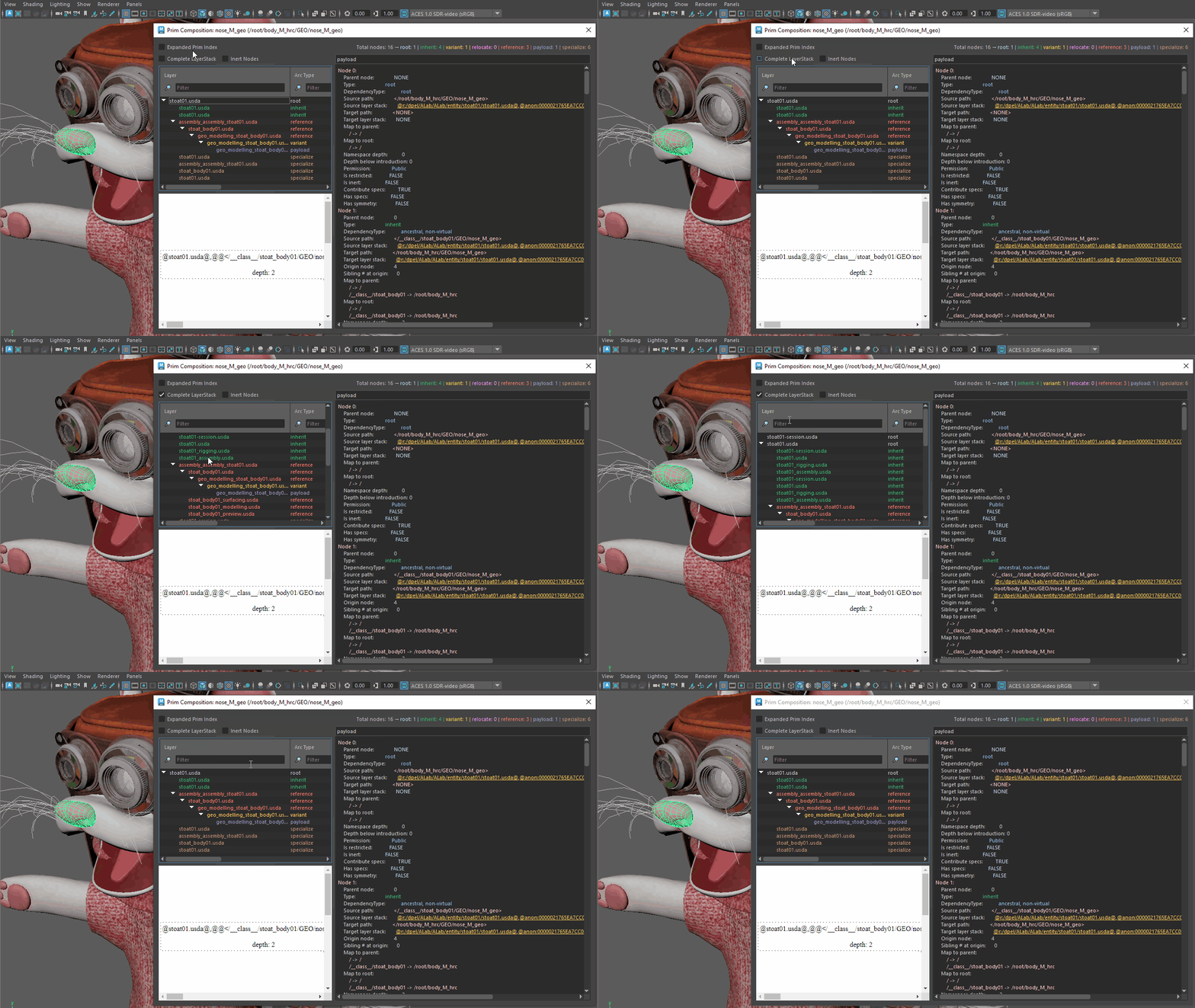
Setting an Edit Target
The Prim Composition tree exposes a context menu with a Set as Edit Target item.
This redirects edits under the selected arc by setting the current stage’s EditTarget.
In the examples below, prims under ChairB_2 and CheerioA_164 have their displayColor, doc and active properties modified in USDView, Houdini and Maya respectively, and changes are inspected via the Layer Content Browser view.
The References arc targeting the
Chair.geom.usdLayer is set as EditTarget.When displayColor is modified, the changes are visible on both
ChairB_1andChairB_2, since they share that arc.The local arc targeting the local root
Kitchen_set.usdlayer is set as EditTarget.Once the displayColor is modified, the changes are visible on
ChairB_2only, since nothing else shares that arc.

The Payload arc targeting the
Cheerio_payload.usdlayer is set as EditTarget.When doc of the
CheerioA_164prim is modified, the changes are visible on allCheerioA_*prims, since they share the composition arc and the layer being modified.The local arc arc targeting the anonymous houdini LOP layer from the Root LayerStack is set as EditTarget.
Once the doc is modified, the changes are visible on
CheerioA_164only, since nothing else shares that arc.

The Payload arc targeting the
Chair_payload.usdlayer is set as EditTarget.When the active property is modified, the changes are visible on both
ChairB_1andChairB_2, since they share the composition arc and the layer being modified.The local arc targeting the
Kitchen_set.usdlayer in the Root LayerStack is set as EditTarget.Once the active property is modified, the changes are visible on
ChairB_2only, since nothing else shares that arc.

Layer Stack Composition
Similar to Prim Composition, but available for the whole Stage or multiple Prims at once.
This helps answer questions like:
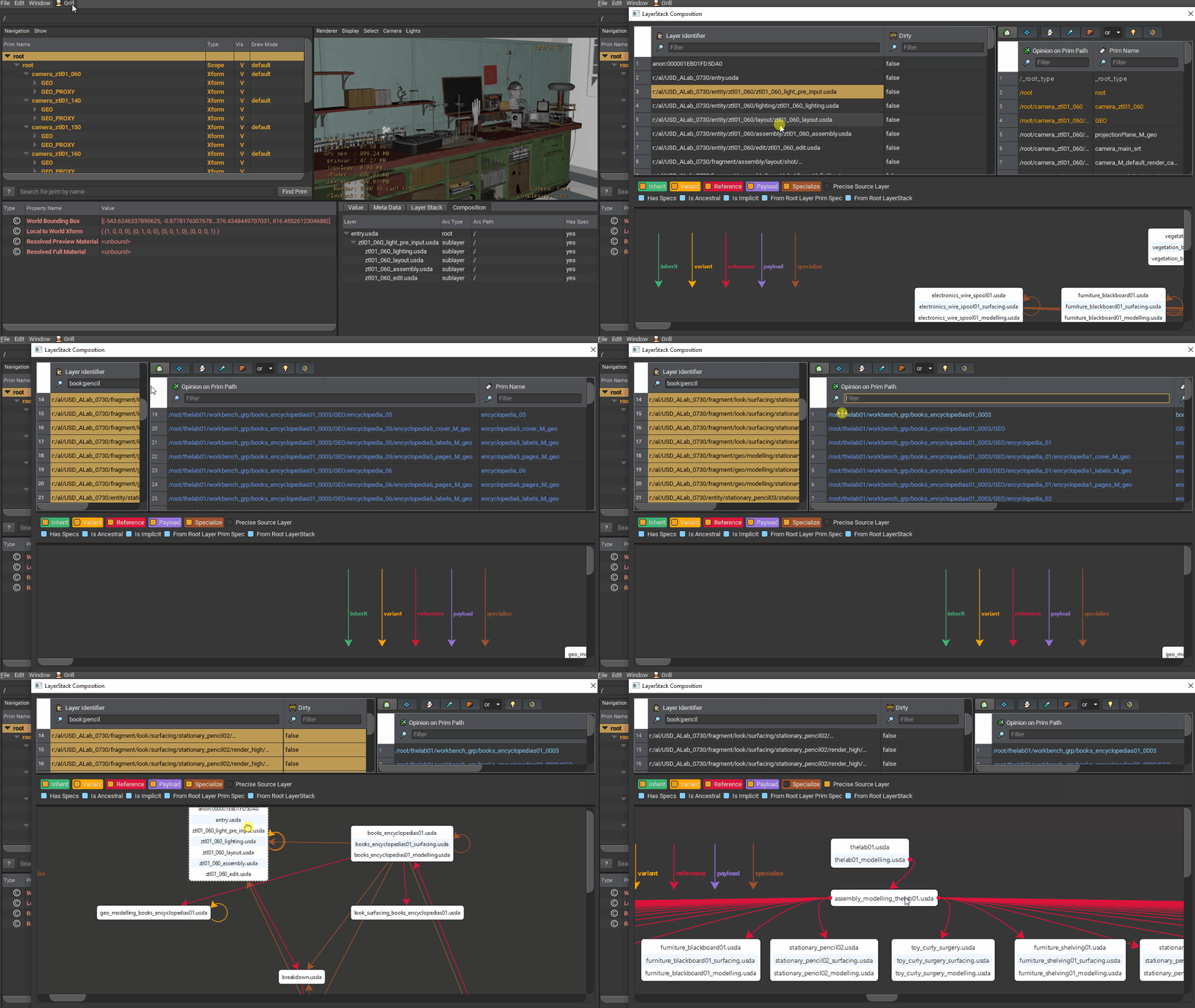


In the above example, we’re inspecting Animal Logic’s USD ALab.
On the upper left, all used layers in the composition of the inspected Stage or Prims are listed.
On the upper right, all Prims that are affected by the current selected Layers are listed.
On the bottom, a Composition Arcs graph is displayed for the selected Layers plus the neighbors (predecessors and successors) for each of their LayerStacks.
Nodes in the network represent LayerStacks.
Edges are the Composition Arcs between them (it follows the same color scheme as the ones provided by PcpPrimIndex::DumpToDotGraph()).
Options to filter Composition Arcs are provided above the network view.

The additional option
Precise Source Layer(off by default) exists to draw the edge source from the layer from the stack that introduces it. This allows to go from this: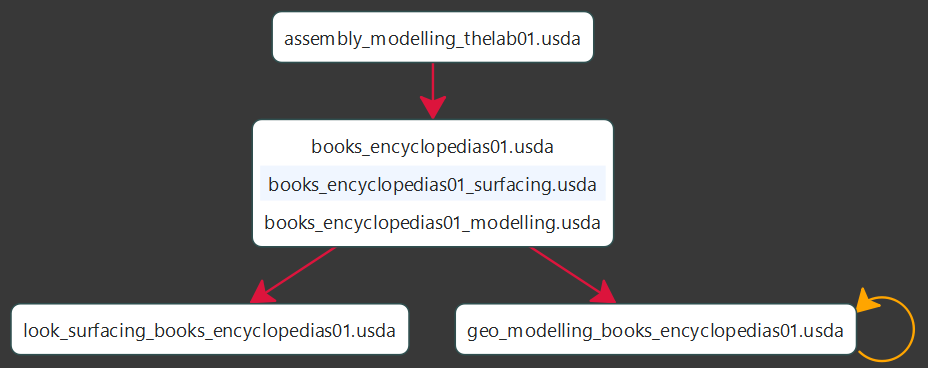
To (note the outputs of
books_magazines01_surfacingandbooks_magazines01_modelling):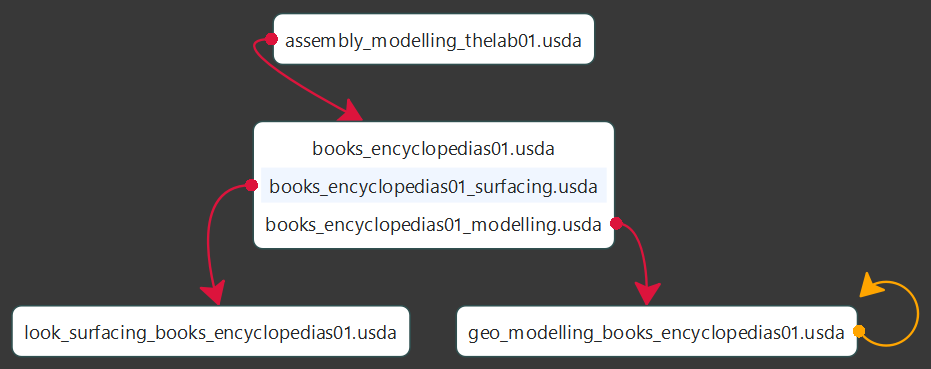

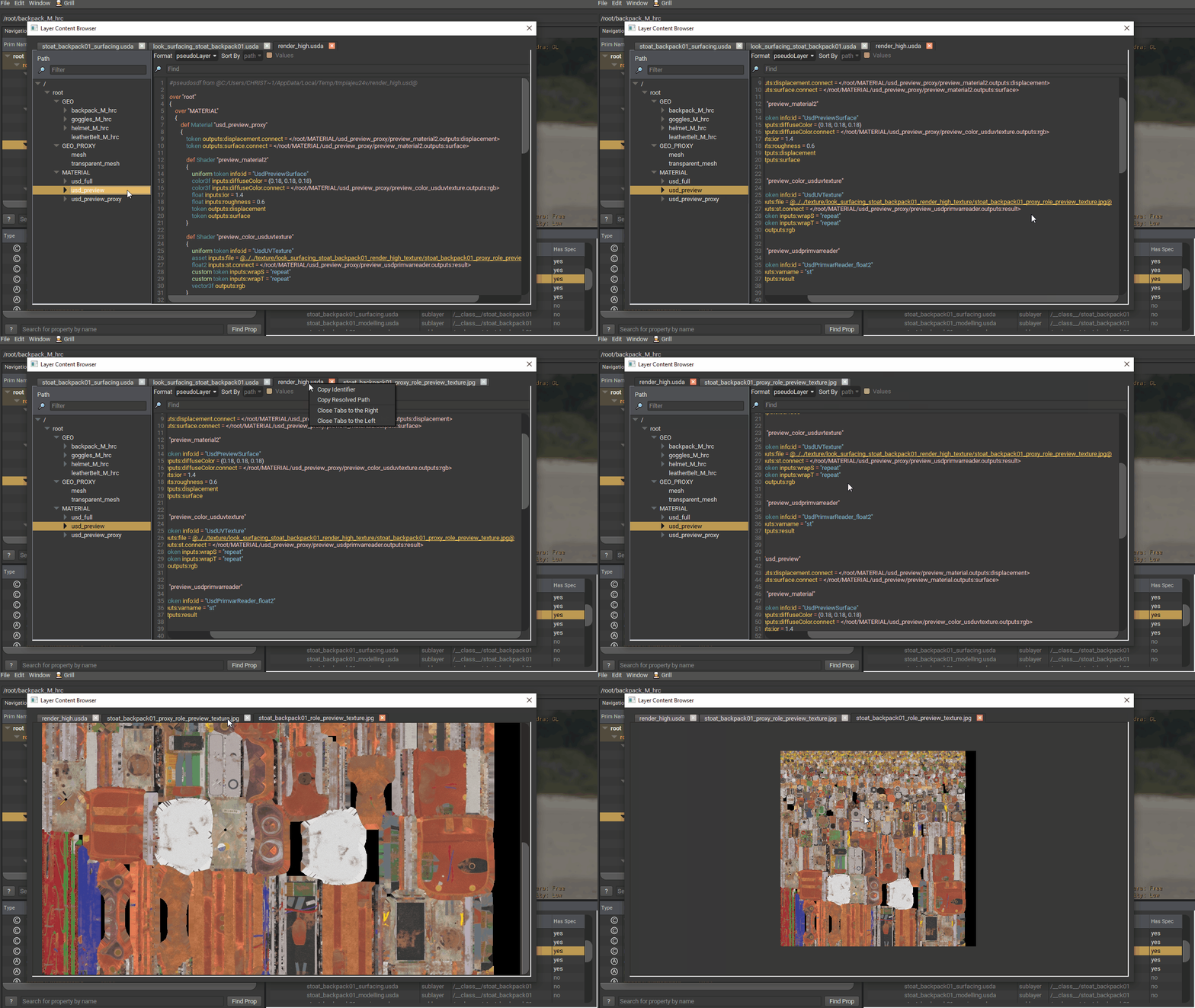
Layer Content Browser
Uses sdffilter and usdtree to display content from USD layers (regardless of format or if they have been saved on disk).
Array attributes and time samples have their contents reduced to a maximum of 6 entries.

The browser can be opened from USDView’s Composition tab (as shown above), as well as from the Layer Stack Composition’s layer tree:

Images from formats supported by Qt through QtGui.QImageReader.supportedImageFormats will also be displayed:
Environment Variables
The Grill defaults to an interactive graph explorer for views like the ConnectionViewer, LayerStack Composition and Taxonomy Editor.
Previously, these views used to load static SVG images, leveraging QtWebEngine for performance.
However, some environments do not bring QtWebEngine with them, and others lead to crashes (see thegrill#36 as an example).
In order to help with these issues and to bring interactivity to graph views, thegrill#35 introduced a custom GraphView inheriting from QGraphicsView.
When needed, the following environment variables will bring the old SVG behavior and prevent QtWebEngine crashes:
GRILL_GRAPH_VIEW_VIA_SVG
Enable this with a boolean value to inspect graphs as SVG images. A value of 0 will restore the default interactive GraphViewer:

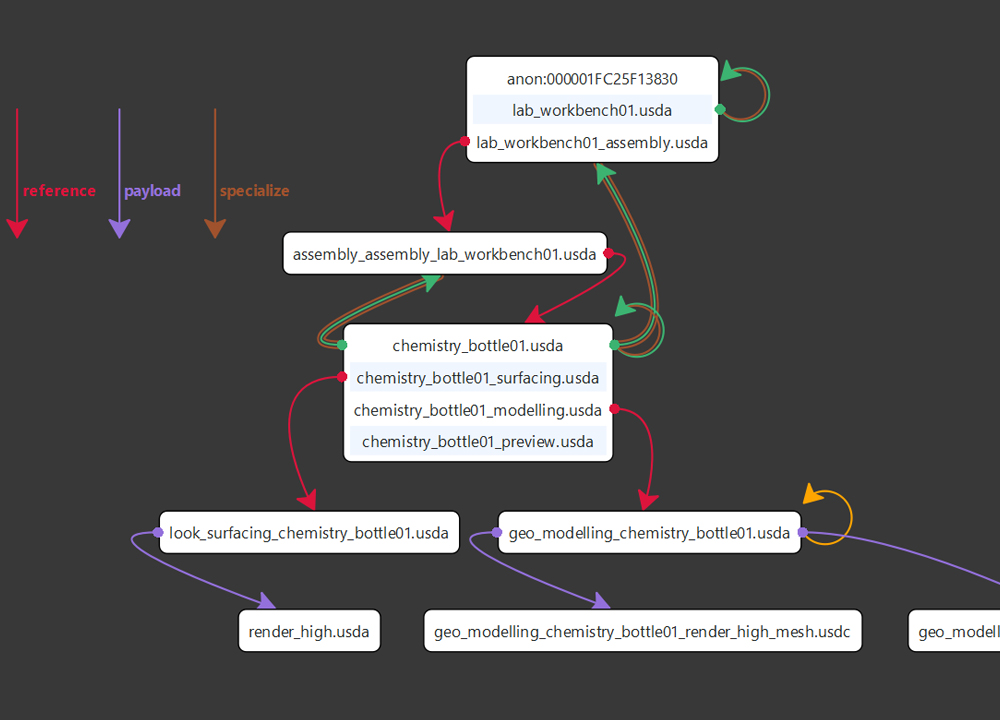
If you come across any reason to inspect images as SVG, please reach out on GitHub as this will help assess if this should be removed or better integrated beyond an environment variable.
GRILL_SVG_VIEW_AS_PIXMAP
Enable this with a boolean value to load SVG images as QPixmap (thus avoiding use of QtWebEngine):

